Quick Add Account & Bundle
Last Modified on 07/06/2026 2:15 pm PDT
Service bundles serve as location-specific packages of services, streamlining account and service setup by displaying only the options available in that area. For additional guidance on setup requirements and enabling service bundles for customers online, review the Related Articles section at the bottom of this page.
Permission
The following permissions are required to add an account using the Quick Add Account & Bundle tool:
| Permission ID | Permission Name |
| 463 | Quick Add Account & Bundle
|
Quick Add Account and Bundle Process
This section outlines the process a system user will experience using the Quick Add Account and Bundle feature available in the Accounts module.
| Accounts Module |
|
|
Users with permission 463 (Quick Add Account & Bundle) will have access to the Quick Add Account & Bundle option in the Accounts module. | 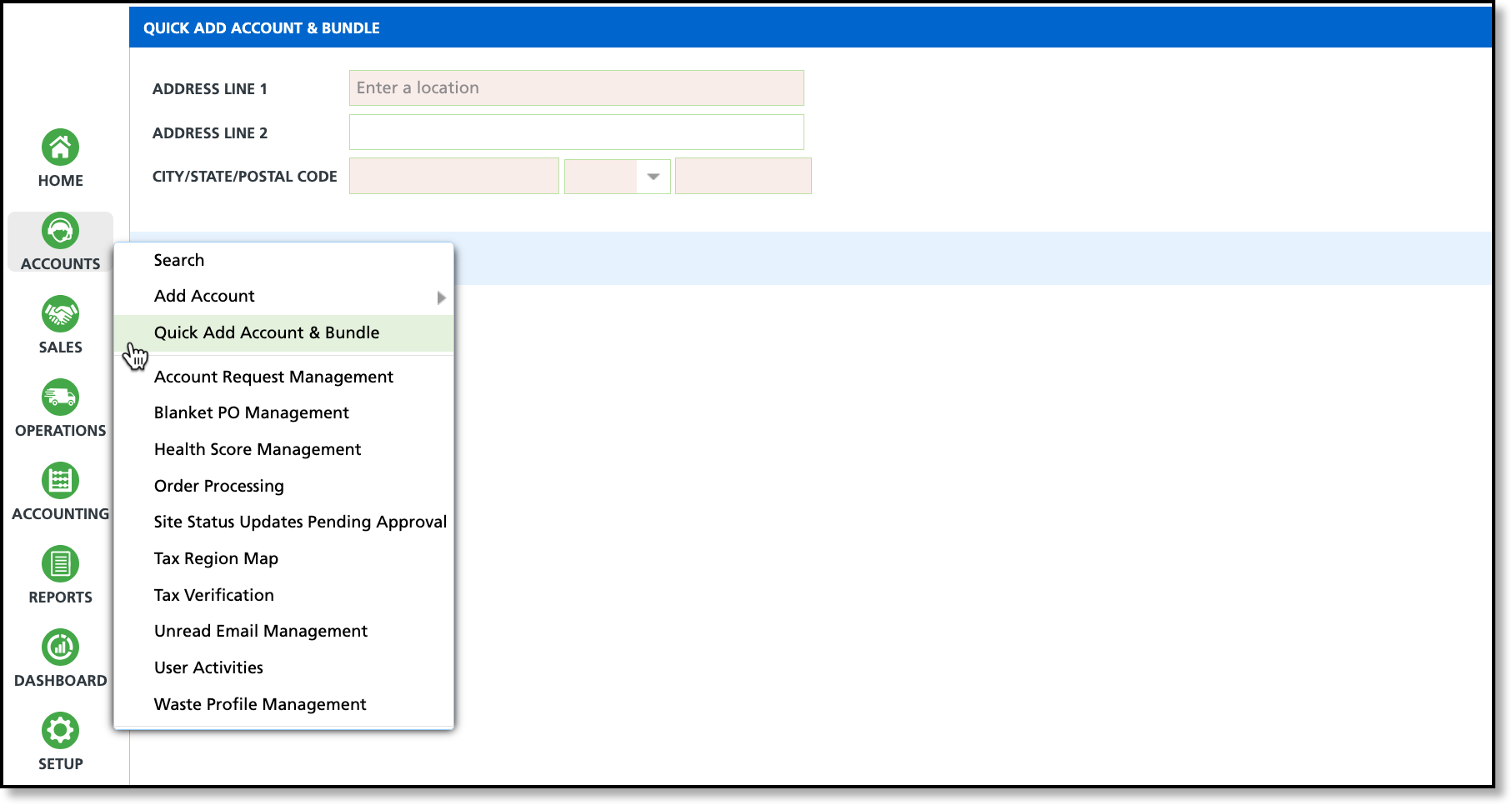 |
|
|
|
| Add bundle |
 |
|
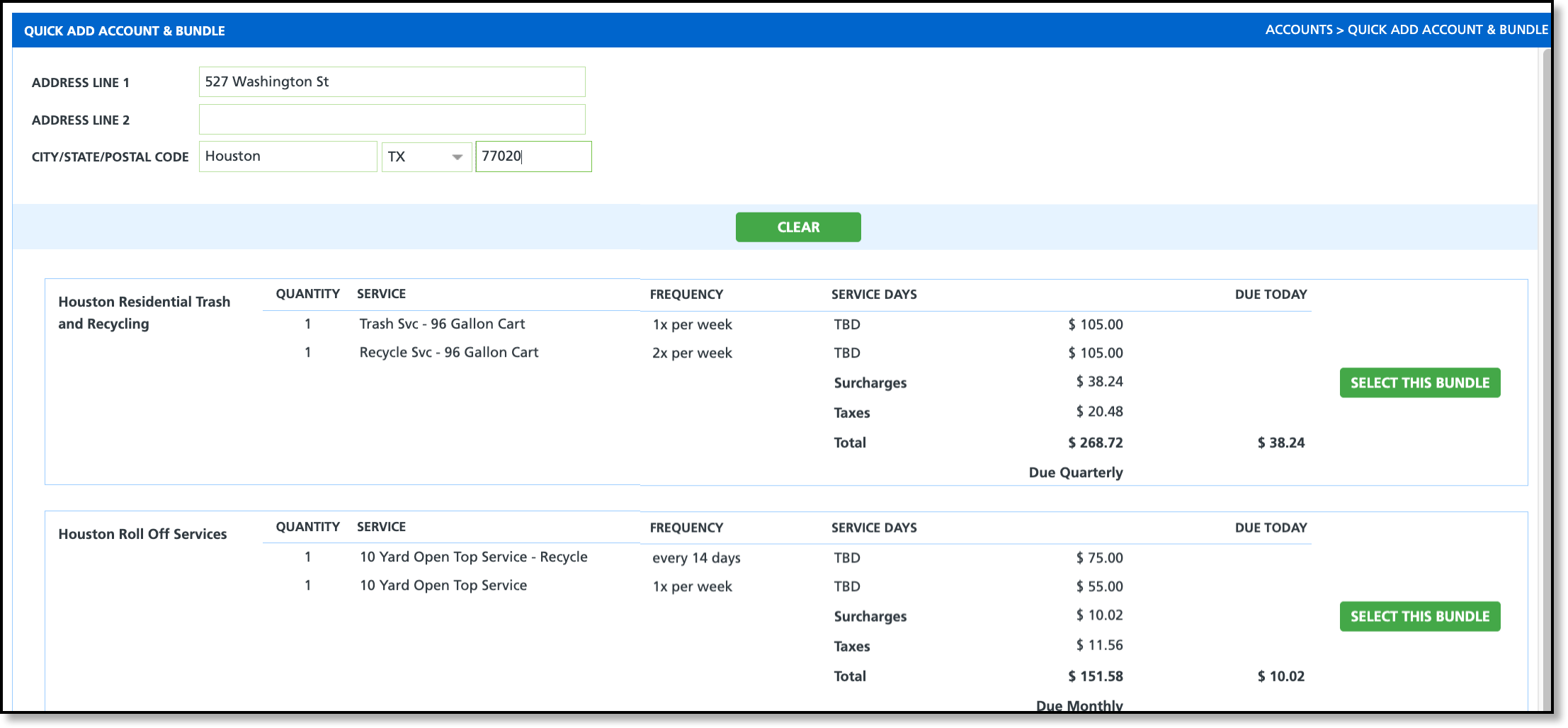
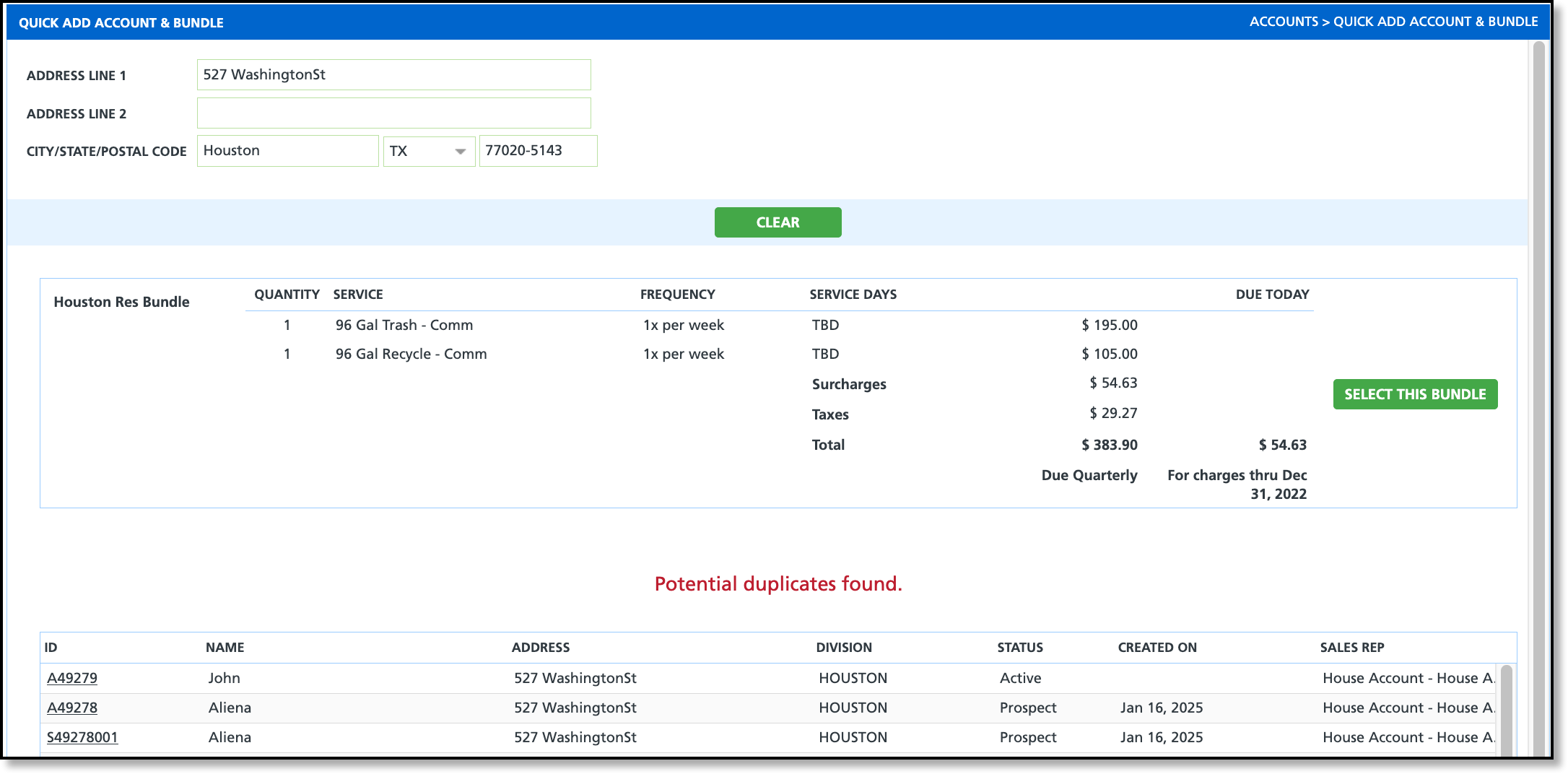
From the Quick Add Account & Bundle screen, system users can enter an address to search for service bundles available in the region. Because this process will also create an account, the system will search for potential duplicates, a similar method used by Add Account.
Note: Service Days is defaulted based on the stops closest to the service location.
|
|
|
|
| Confirmation of Information |
|
|
If no duplicates are found and the system user continues, the next screen will prompt them to confirm the contact information for the customer account being created. Once all required fields are completed, the contract will be sent to the customer for review. | 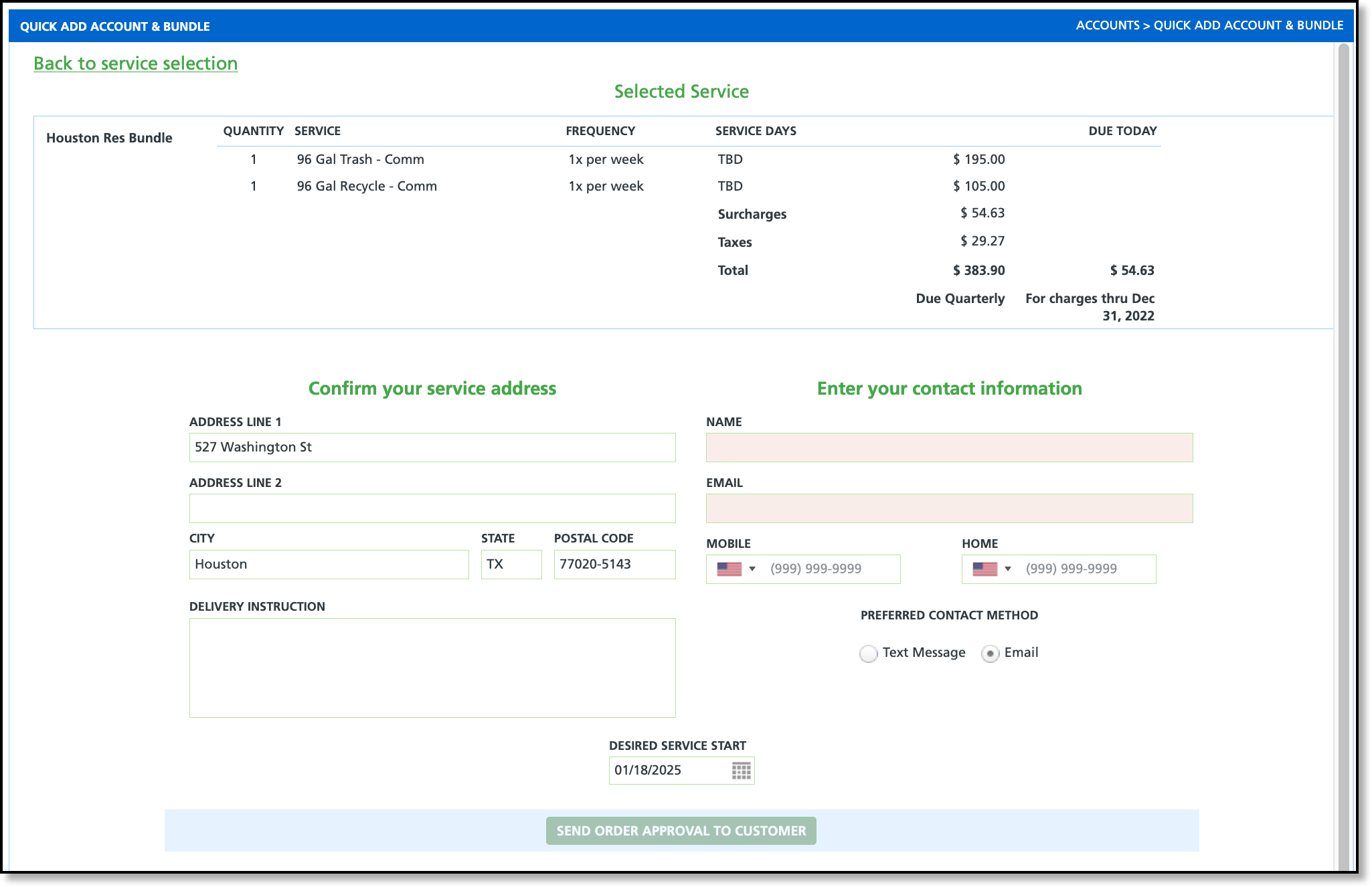 |
|
|
|
| Order Details |
 |
|
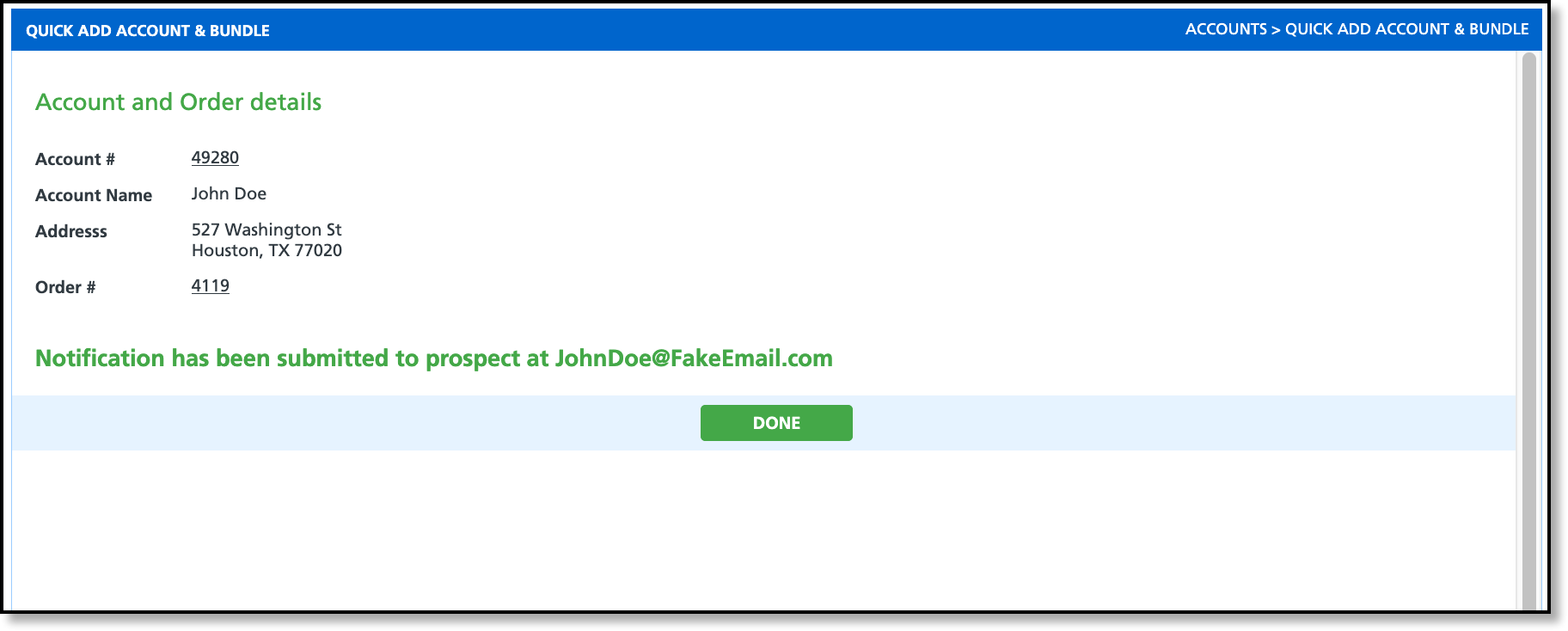
A final order details screen is displayed, confirming that the service notification has been sent to the prospective customer. |
|
|
|
| Orders, Quotes and Contracts |
|
|
After the order is completed, a new account is created, and the service bundle becomes accessible in the Orders, Quotes, and Contracts sections. | 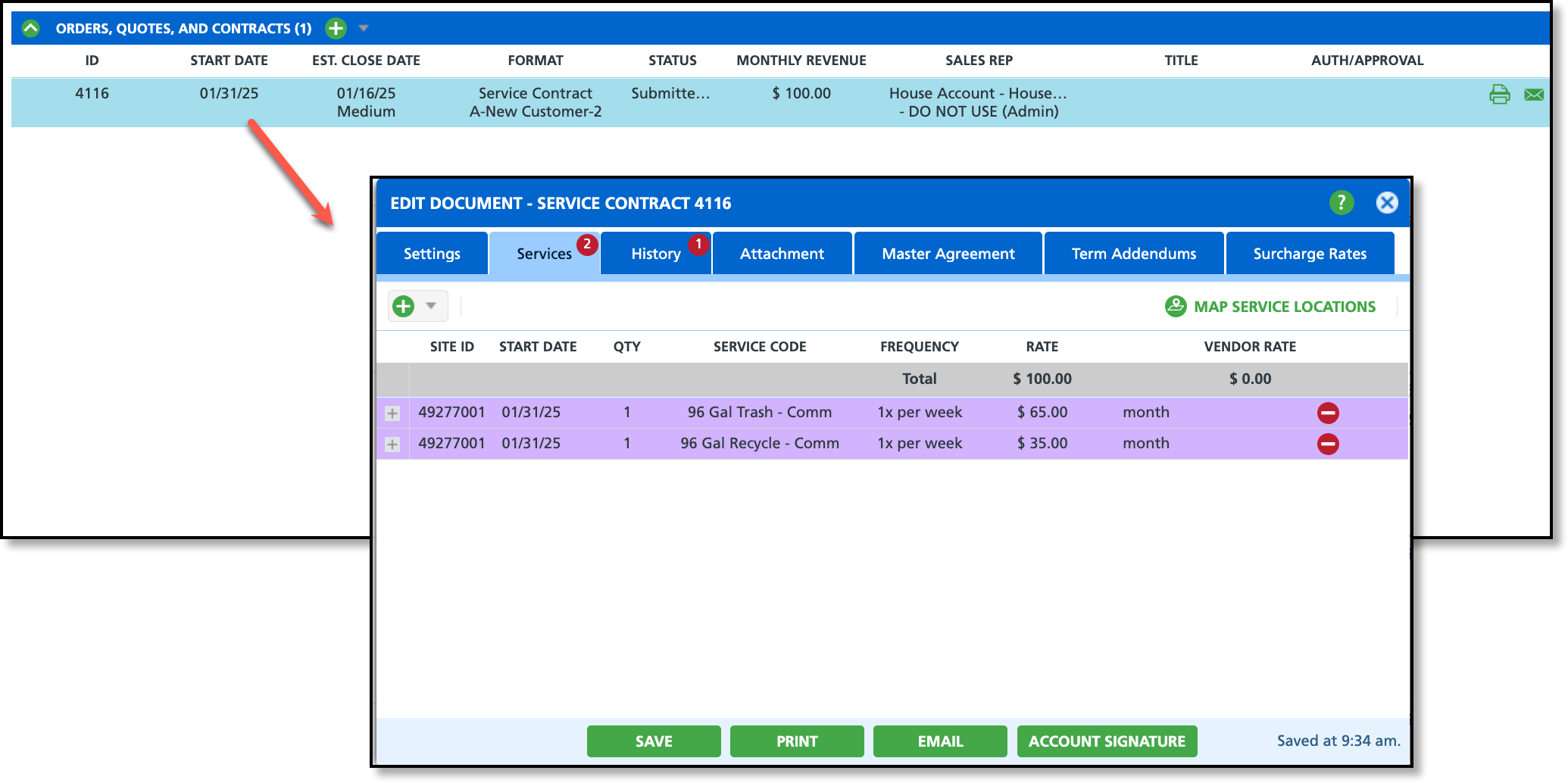 |
|
|
|
Add Service Menu Process
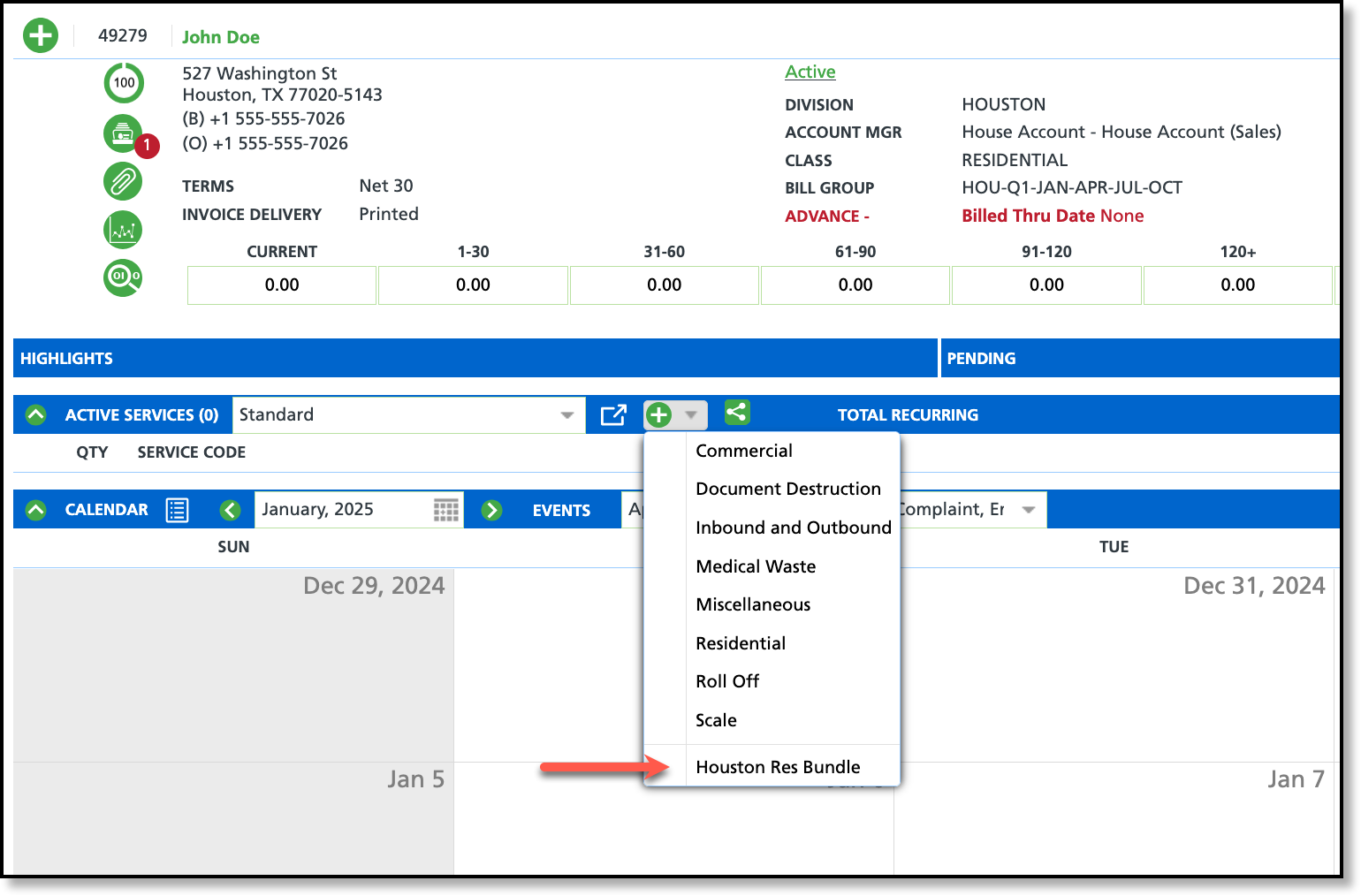
This section outlines the process a system user follows to add a service bundle from the Customer Service screen. An active account is required to complete the bundle selection process from the Add Service menu.
| Add Active Service |
 |
|
Service bundles that have the 'Add Service Menu' check box marked in Bundle Setup, will display as an option in the Active Services drop down list. After selecting the bundle, and entering an effective date, it will be added to the site's active services. |
|
|
|
Related Articles
Service Bundle and Online Order Setup
Online Order
