Equipment Maintenance
Last Modified on 12/15/2025 12:07 pm PST
Pathway: Operations > Equipment Maintenance
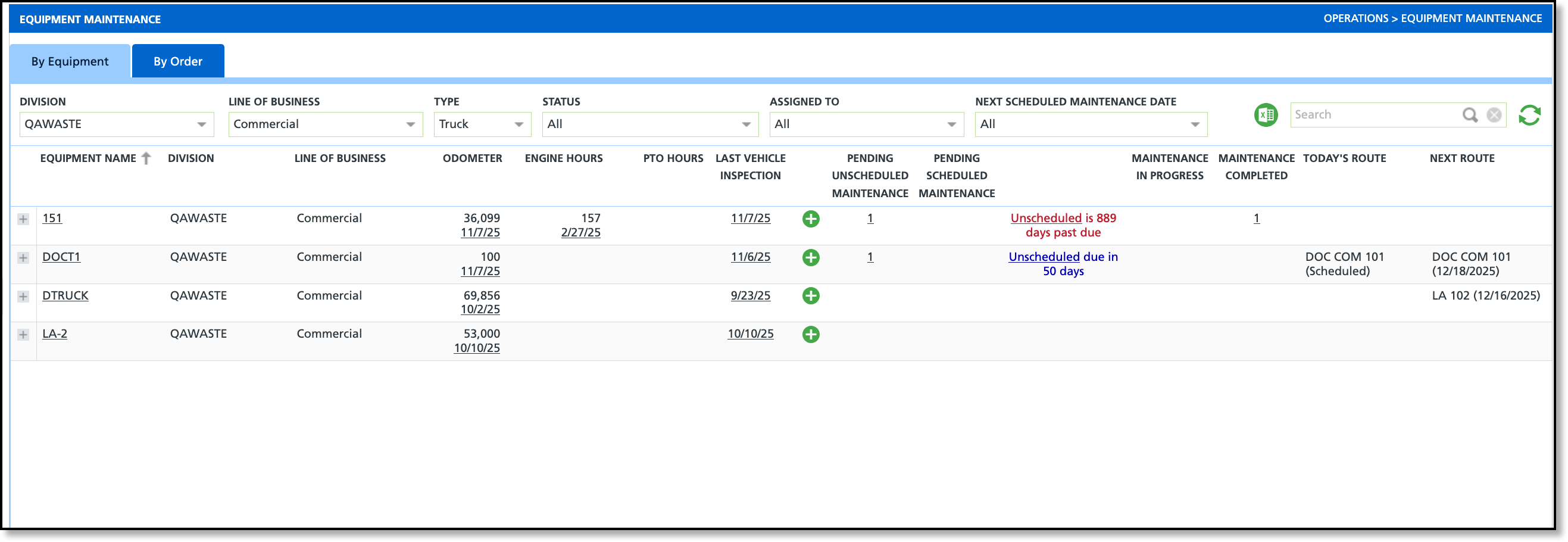
Equipment Maintenance is used to track and record the maintenance schedules and progress for trucks and equipment. Setup is required in Setup > Operations > Equipment Maintenance to accurately maintain maintenance records. To load the screen, select the refresh icon to the right of the Search bar.
Field Descriptions
The Equipment Maintenance screen includes By Equipment and By Order tabs, with filters and fields adjusting according to the selected tab.
Field | Description |
Filters |
Division | Option to filter the equipment that displays on the screen based on the division it belongs to.
|
Line of Business | Option to filter what displays on the screen by the Line of Business.
|
Type | Filters the screen to either display only trucks, or only equipment.
|
Status | Filters the screen to one of the following options: - All
- Repairs Needed
- Equipment Maintenance In Progress
- Equipment Maintenance Due
|
Assigned To | Option to filter the screen to only display trucks/equipment assigned to a specific user.
|
| Next Scheduled Date | Only on the By Equipment screen, this filter organizes maintenance orders by next maintenance date: All, Past Due, 1–7 Days, 8–14 Days, More than 14 Days. |
Excel Icon | Option to export what is currently being viewed.
|
By Equipment - Field Descriptions |
Equipment Name | Shows the name of the equipment being serviced. Click the expand icon to see a summary of open maintenance orders. |
Division | Displays the name of the division the equipment belongs to.
|
Line of Business | Displays the line of business the equipment belongs to.
|
Odometer | Shows the latest odometer reading. Clicking the date displays the history with timestamps and the recording user. |
Engine Hours | Shows the latest engine hours reading. Clicking on the date displays the history with timestamps and the recording user. |
PTO Hours | Displays the truck's PTO (Power Take Off) hours and is part of the calculations to determine a truck's next service date. |
Last Vehicle Inspection | Shows the date of the most recent vehicle inspection. Clicking it displays the inspection results.
|
Pending Non-Scheduled Maintenance | Shows a count of all unscheduled maintenance orders with a status of Open, In Progress, or On Hold. |
Pending Scheduled Maintenance | Shows a count of all scheduled maintenance orders with a status of Open, In Progress or On Hold.
|
Maintenance In Progress | Displays a count of all scheduled and unscheduled maintenance orders with a status of In Progress.
|
Maintenance Completed | Displays a count of all scheduled and unscheduled maintenance orders with a status of Completed.
|
Today's Route | Shows the route name and current status of the route for the current day.
|
Next Route | Shows the name and date of the truck’s upcoming route assignment.
|
| By Equipment - Field Descriptions |
| Order ID | Displays the maintenance order ID.
|
| Equipment Name | Displays the name of the equipment.
|
| Type | Displays if the maintenance was scheduled or unscheduled.
|
| Source | Displays the source of how the maintenance order was created.
|
| Target Date | Displays the Target Date entered by the user who created the ticket, indicating when the maintenance is expected to be completed. |
| Division | Displays the name of the division the equipment belongs to.
|
| Line of Business | Displays the line of business the equipment belongs to.
|
| Status | Displays the current status of the maintenance order, recorded on the Details tab.
|
| Assigned To | Displays the name of the technician, or worker assigned to the maintenance order.
|
Create Equipment Maintenance Order - Operations
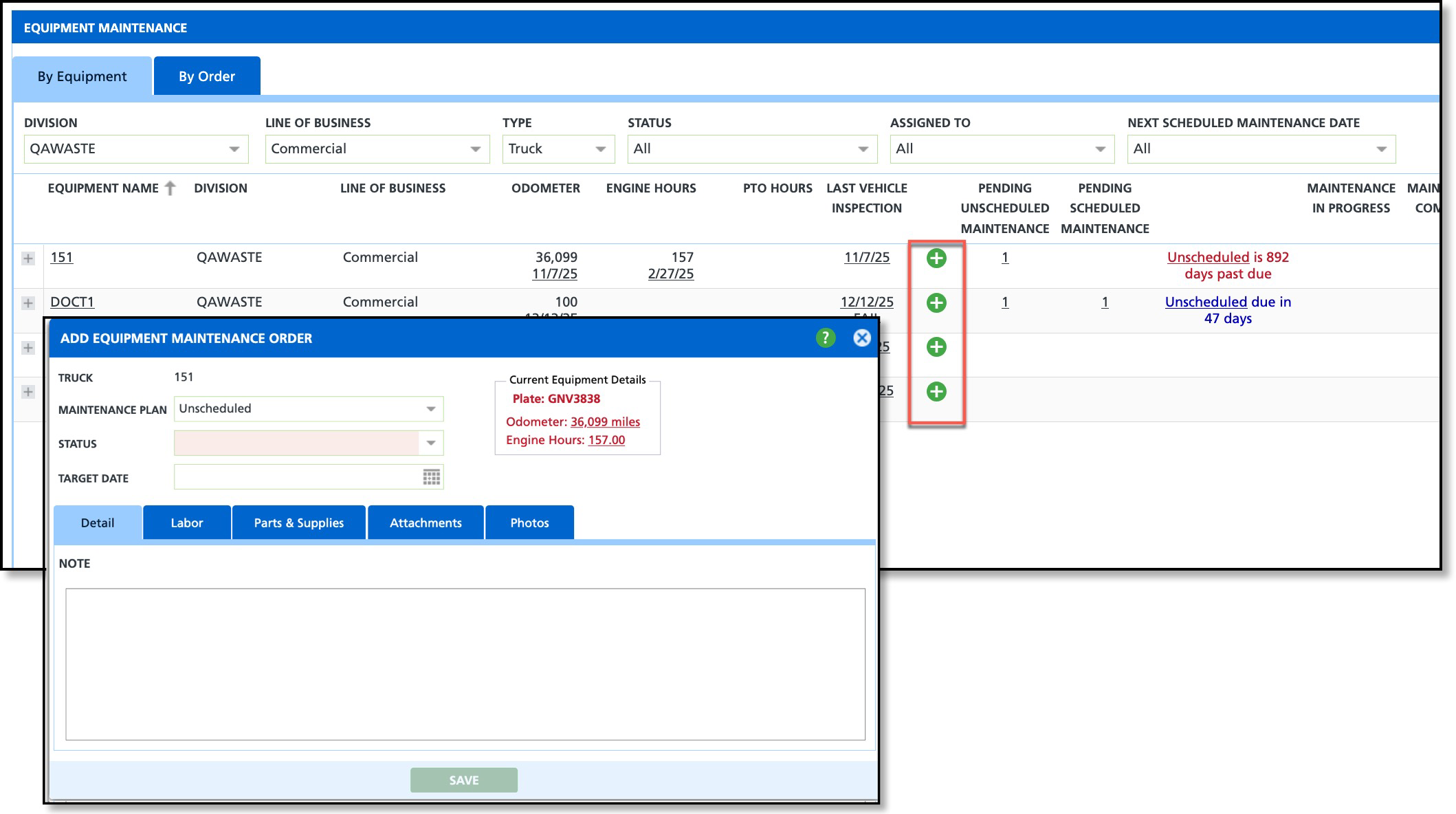
Select the Add icon from the row of the truck the maintenance order is intended for and the 'Add Equipment Maintenance Order' popup editor will display.
Add Equipment Maintenance Order
Detail Tab
The Details tab records why the maintenance order is required and provides options to manage its status and set a targeted completion date.
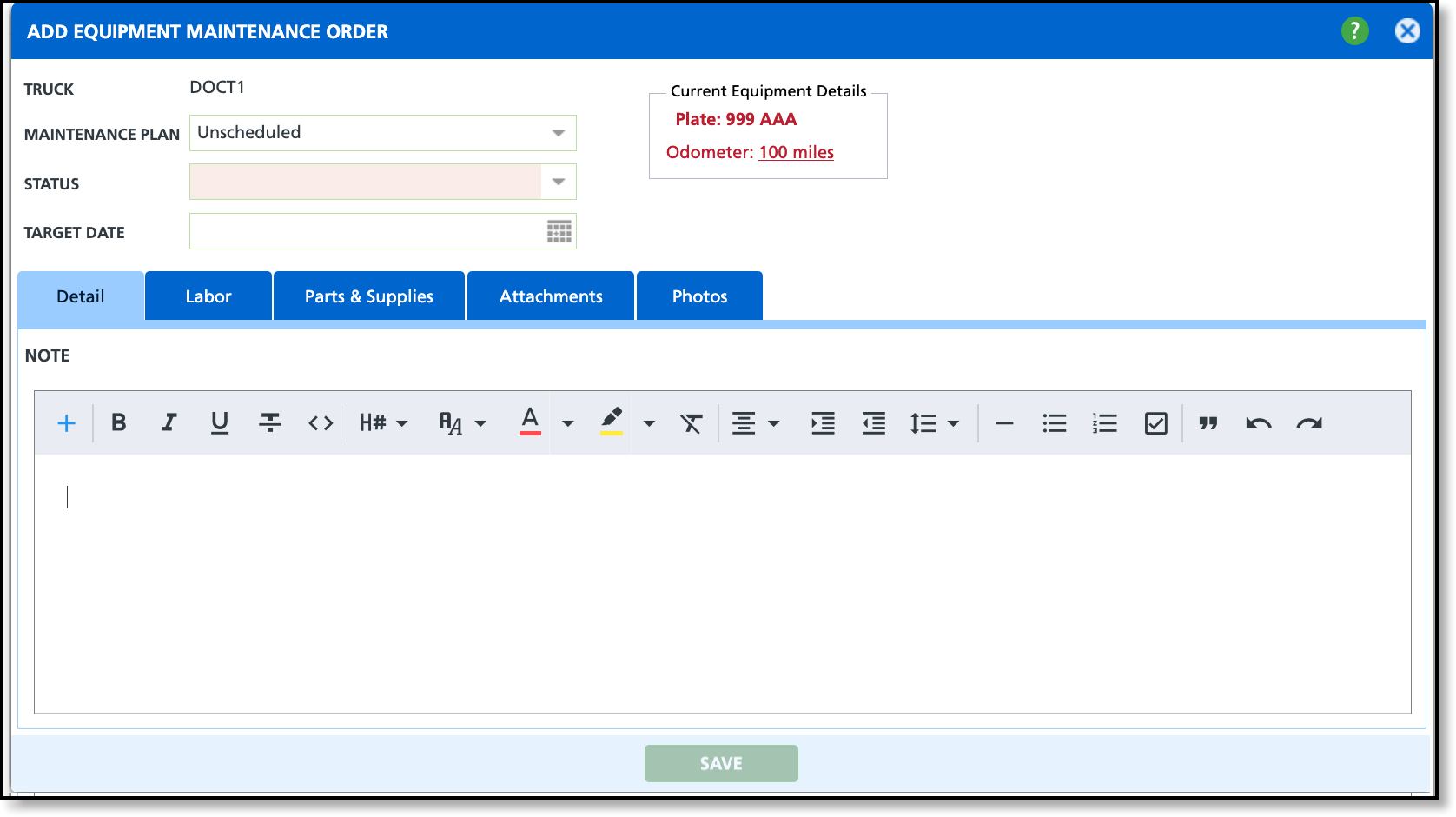
- Select the Maintenance Plan that applies. Maintenance plan setup can be reviewed here: Maintenance Plan
- Select the Status of the maintenance order.
- Enter a Target Date maintenance is expected to be complete.
- Add any Notes that may apply.
- Click Save when finished.
Labor Tab
The Labor tab records the work code, what was accomplished, and the technician who completed the maintenance.
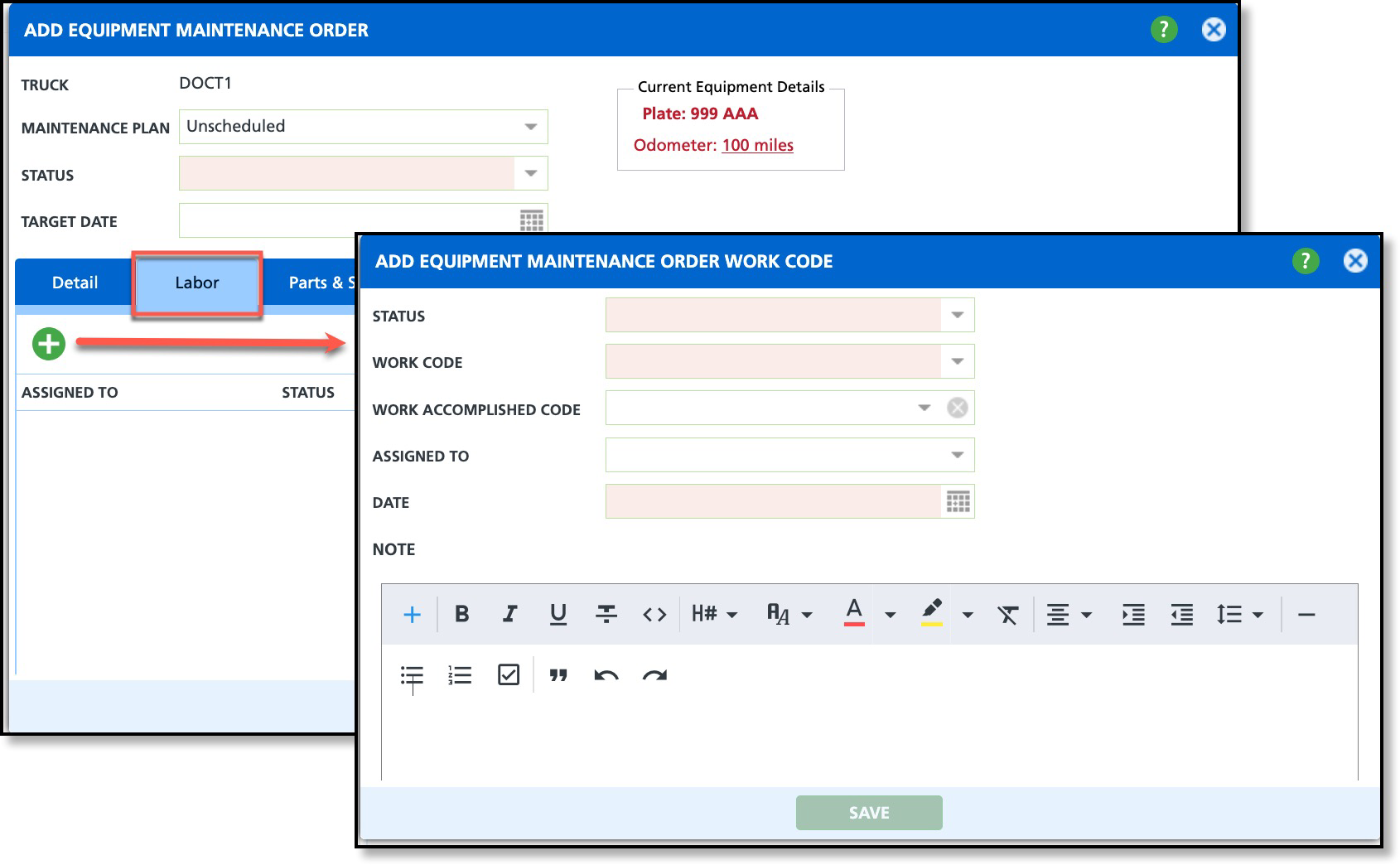
- Select the Labor tab and click on the Add icon to open the Add Equipment Maintenance Order Work Code.
- Select the current Status that applies for the work code.
- Select the Work Code being added to the Labor tab. Work Code Setup can be reviewed here: Work Codes
- The Work Accomplished Code can be added after maintenance is complete. Work Accomplished Code Setup can be reviewed here: Work Accomplished Code
- Select who the work will be completed by in the Assign To field.
- Enter a Date.
- Add any Notes that may apply.
- Click Save when finished.
Parts & Supplies Tab
The Parts & Supplies tab keeps record of the parts or supplies used during the maintenance.
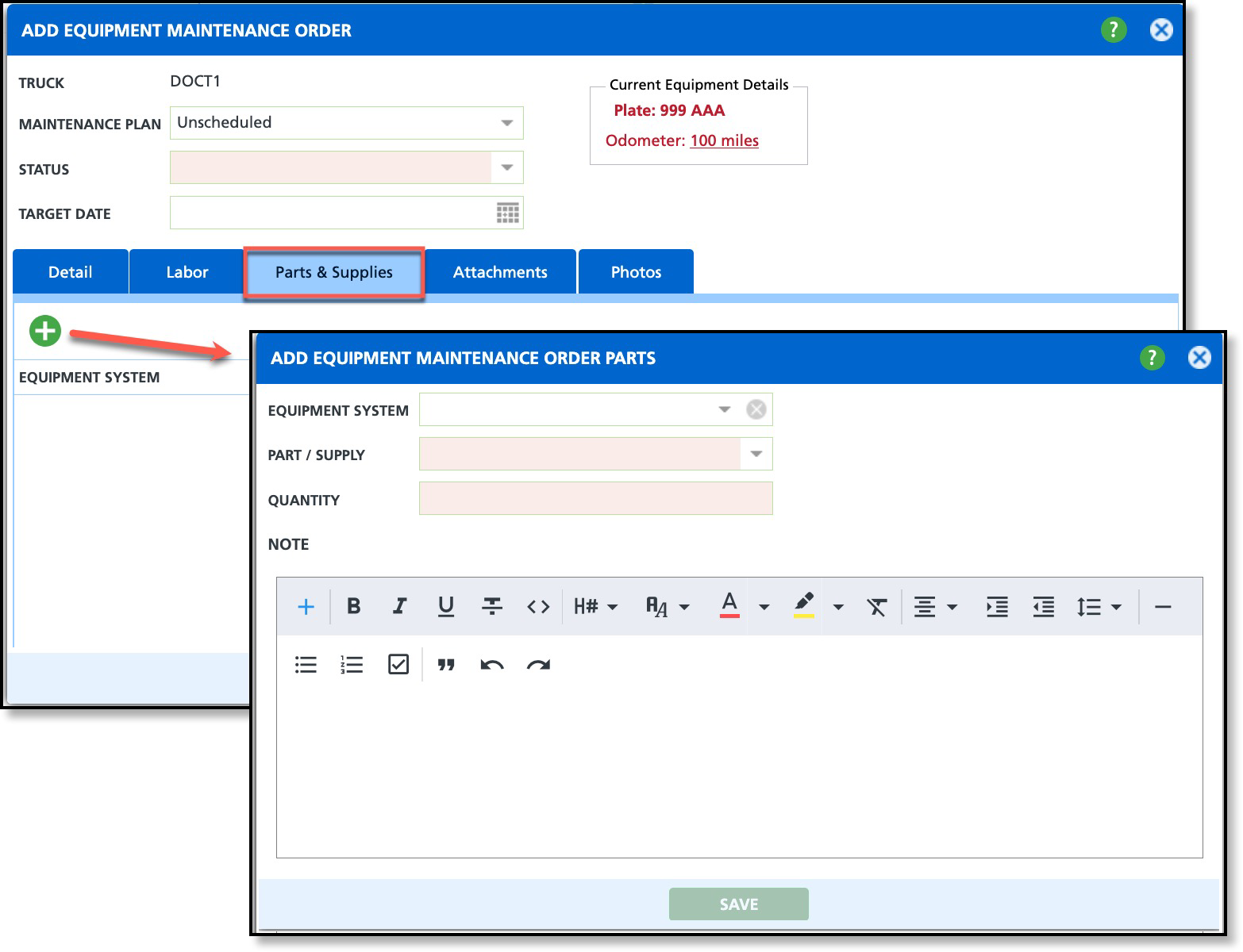
- Select the Parts & Supplies tab and click on the Add icon to open the Add Equipment Maintenance Order Parts.
- If an Equipment System applies, select it from the drop down. Equipment System Setup can be reviewed here: Equipment System
- Select the Part / Supply from the drop down list. Parts and Supplies can be reviewed here: Parts and Supplies
- Enter the Quantity of the part or supply. Example, if 6 tires are needed, enter a 6.
- Add any Notes that may apply.
- Click Save when finished.
Attachments Tab
The Attachments tab is used to add supporting files, such as purchase receipts, to the maintenance order.
Photos Tab
The Photos tab is used to attach relevant images, such as photos of discovered issues or damage and completed work, to the maintenance order.
Create Equipment Maintenance Order - Dispatch
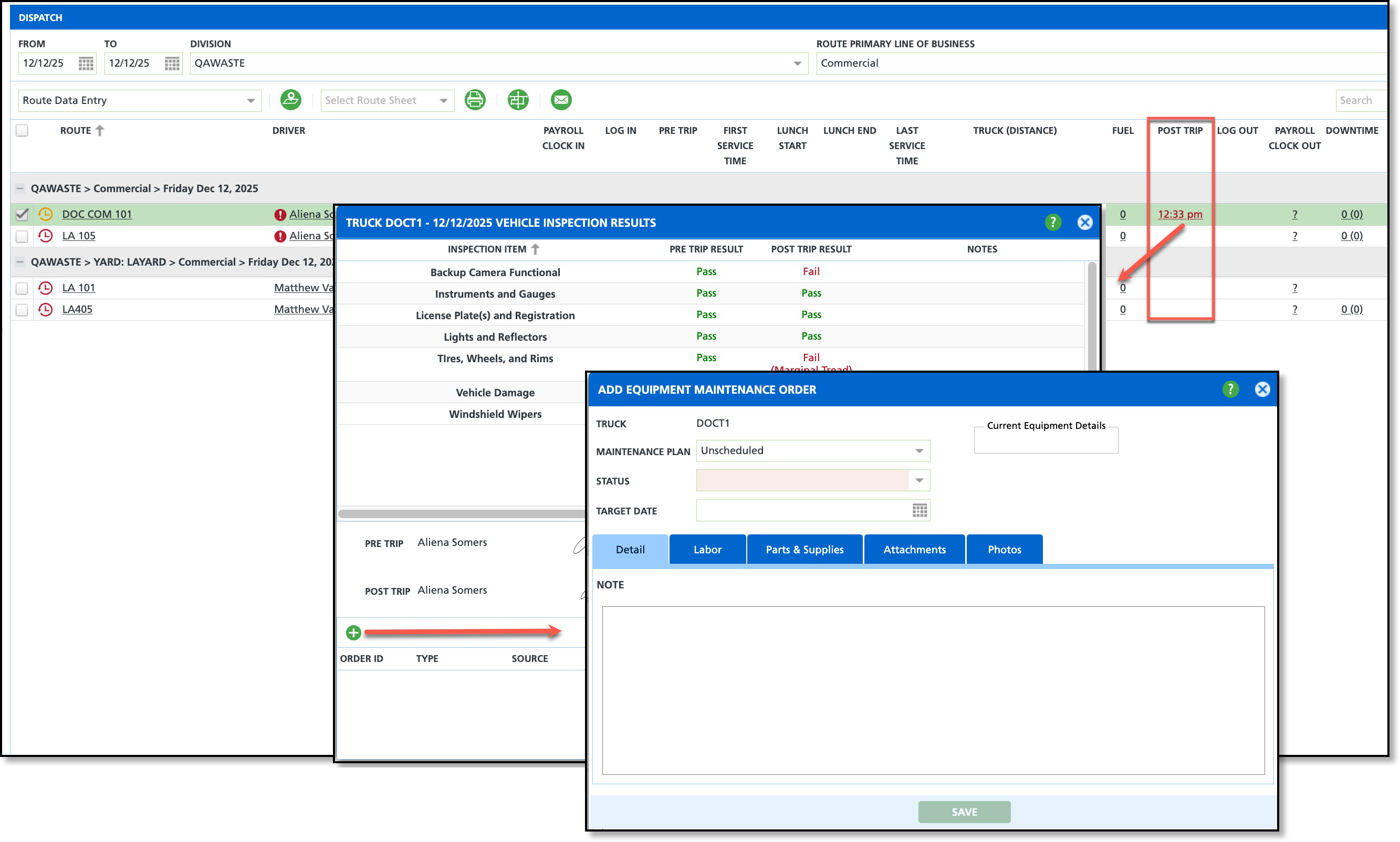
When a driver fails an equipment item during a vehicle inspection, you can create a maintenance order directly from Dispatch by opening the inspection results and selecting the Add icon in the Vehicle Inspection Results window.
The screens and process for creating an equipment maintenance work order from Dispatch are the same as when creating a work order from the Operations > Equipment Maintenance screen.
Related Articles
Equipment Maintenance - Equipment System
Equipment Maintenance - Work Code
Equipment Maintenance - Work Accomplished Code
Equipment Maintenance - Parts and Supplies
Equipment Maintenance - Maintenance Plan


