Material Origin Setup
Last Modified on 08/25/2026 11:59 am PDT
Pathway: Setup > Operations > Material Origin
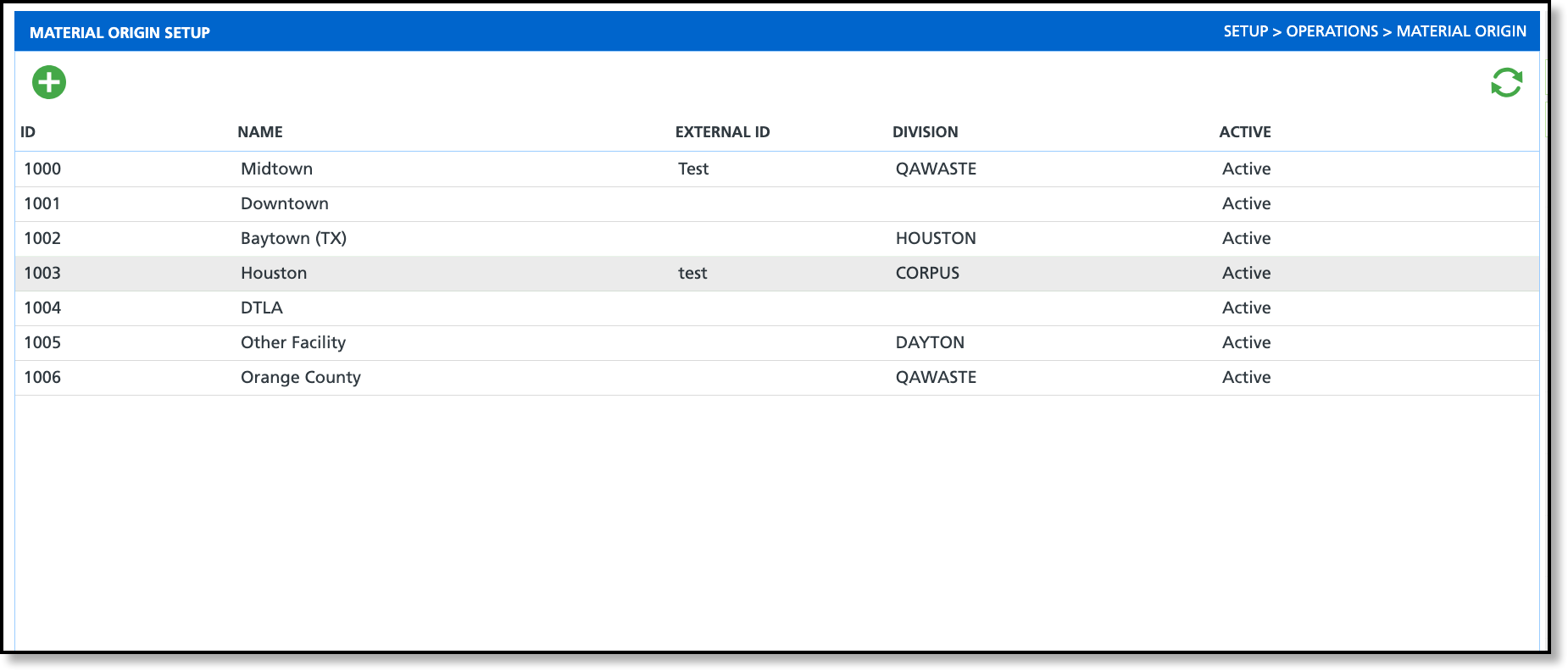
The Material Origin Setup screen is used to configure and track where materials originated from. Origins can be assigned to sites within the same division or selected directly on a scale ticket. This setup also provides the framework for defining and applying disposal rates by material origin at the facility level in Facility Setup.
Add Material Origin
Material Origins can be quickly added by selecting the green Add icon from the Material Origin Setup screen. At a minimum, only a name is required to create an origin. Selecting a Division restricts where the origin can be used; if left blank, the origin is available to all sites and facilities origin can be assigned.
Add Origin Fees
Pathway: Setup > Operations > Facility > Origin Fees [tab]
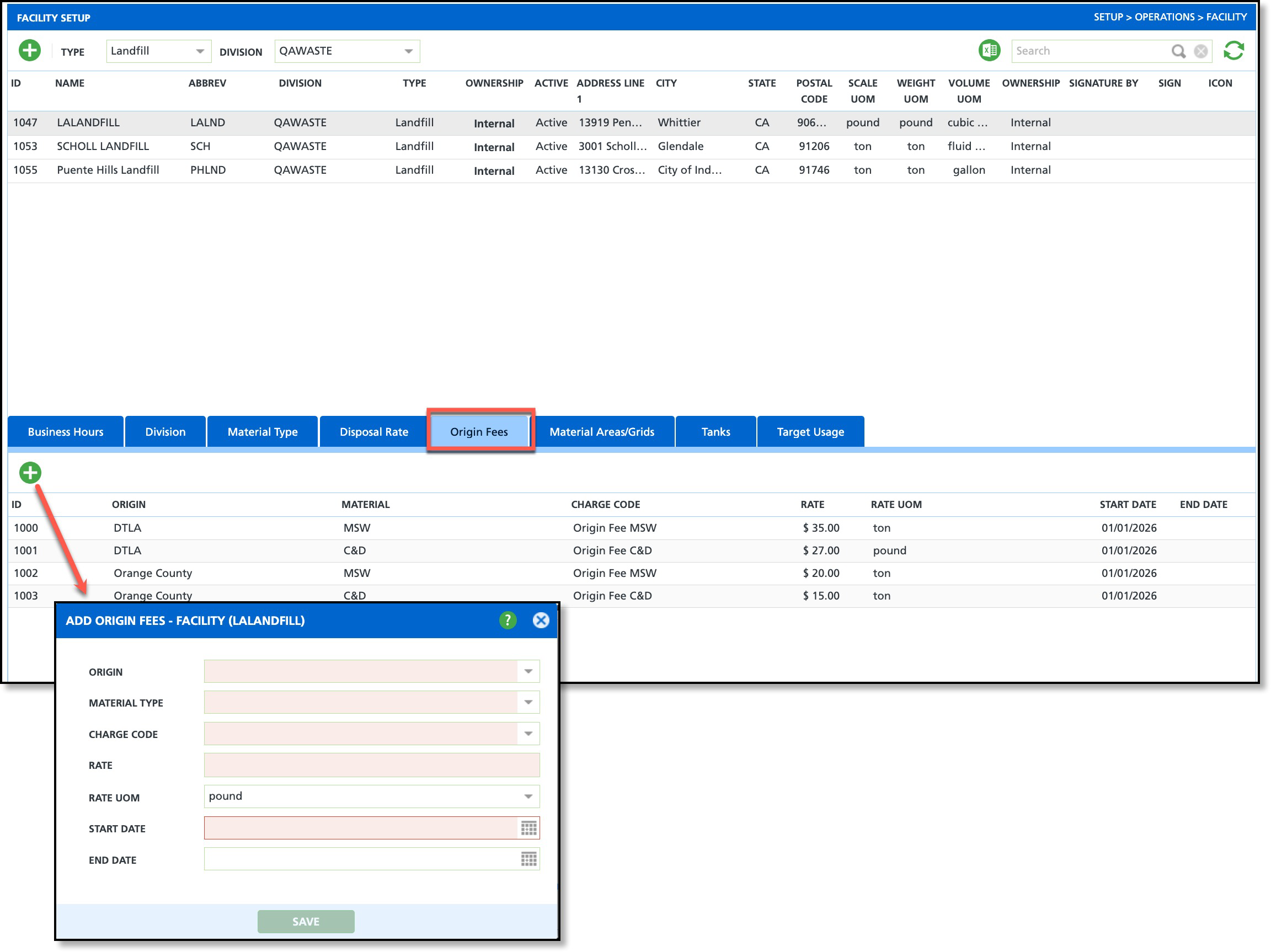
Add Origin Fees allows you to define origin-specific fees at the facility level. Configuring fees here enables multiple origin fees to be created for a single facility, each with its own rate, material type, charge code, and effective date range, providing flexibility to support varying pricing structures by origin.
Add an Origin Fee
- Select the facility from the upper grid to display its associated tab set, then click the Origin Fees tab.
- Click the green Add icon to open the Add Origin Fees pop-up. The facility name is displayed in the header to confirm the fees are being added to the intended facility.
- Select an Origin from the drop-down.
- Only origins with a division that matches the facility’s division are available for selection.
- Select a Material Type.
- Only material types enabled on the Material Type tab (within the Facility Setup tab set) are available for selection.
- Select the Charge Code that will be used for billing.
- Enter a Rate for the selected origin and specify its Rate UOM (unit of measure).
- Enter the Start Date for when the rate applies. If the rate is temporary, add an End Date.
Edit an Origin Fee
- Select the facility from the upper grid to display its associated tab set, then click the Origin Fees tab.
- Double-click the field for the origin you want to update to open the Edit Origin Fees pop-up editor.
- Update the desired fields, then click outside the editor to save your changes.
Assign to a Site
Pathway: Customer Service Screen > [right click] Edit Site
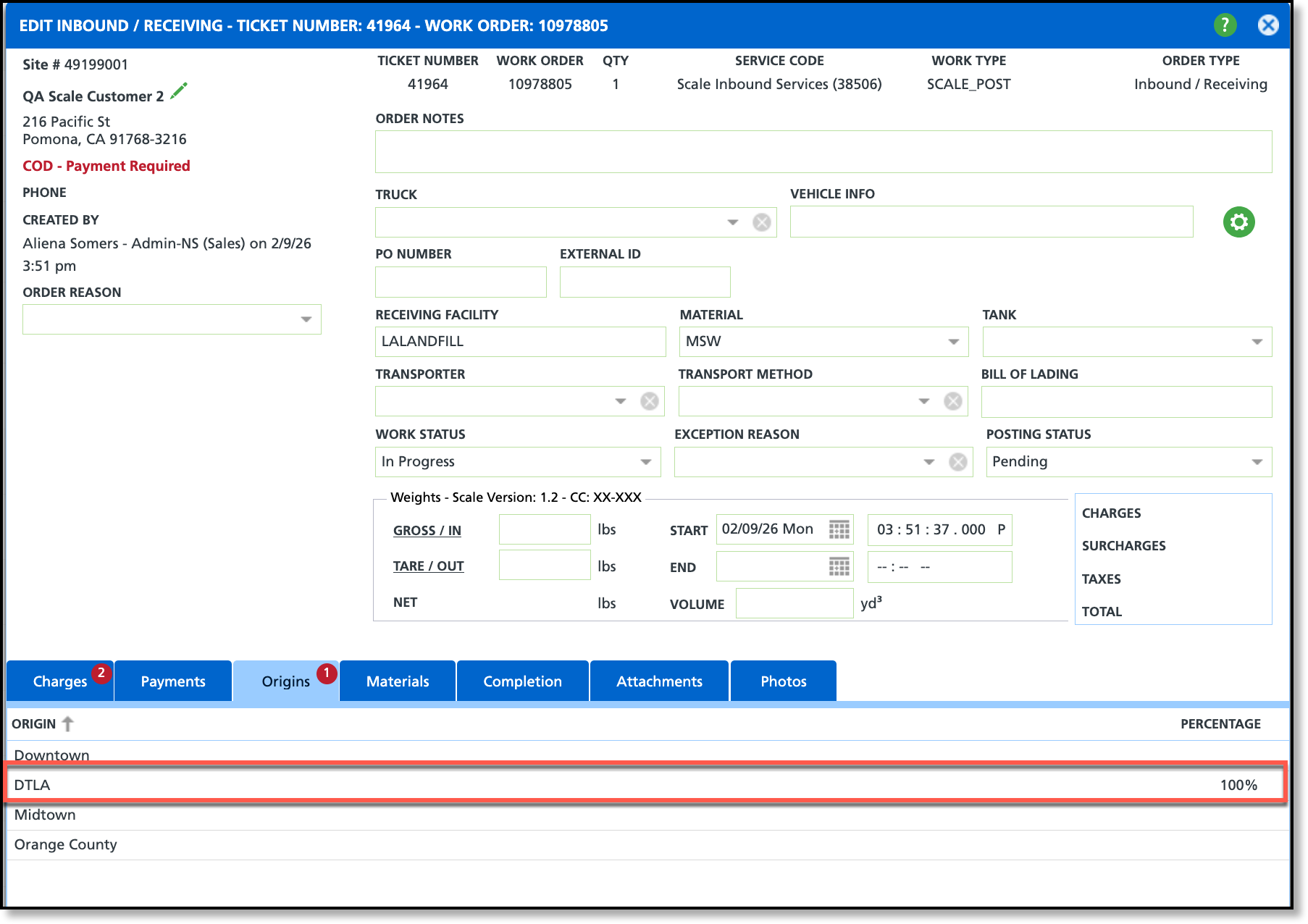
At the site level, a default origin can be set and will auto-populate the Default Origin field when creating a new inbound ticket. Additionally, when an origin is set here, the origin percentage on the Origin tab of the Edit Inbound Order screen is automatically set to 100%.
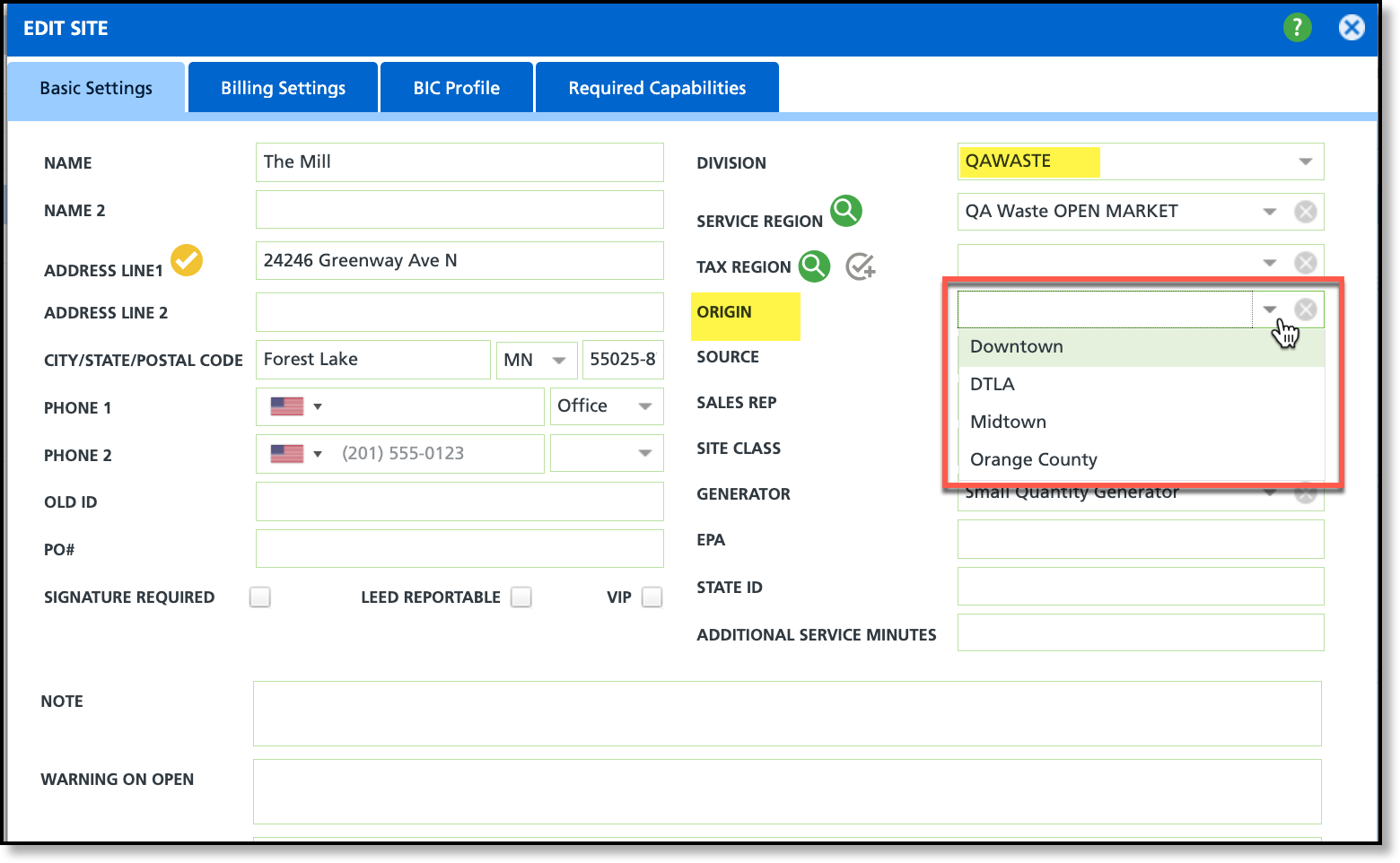
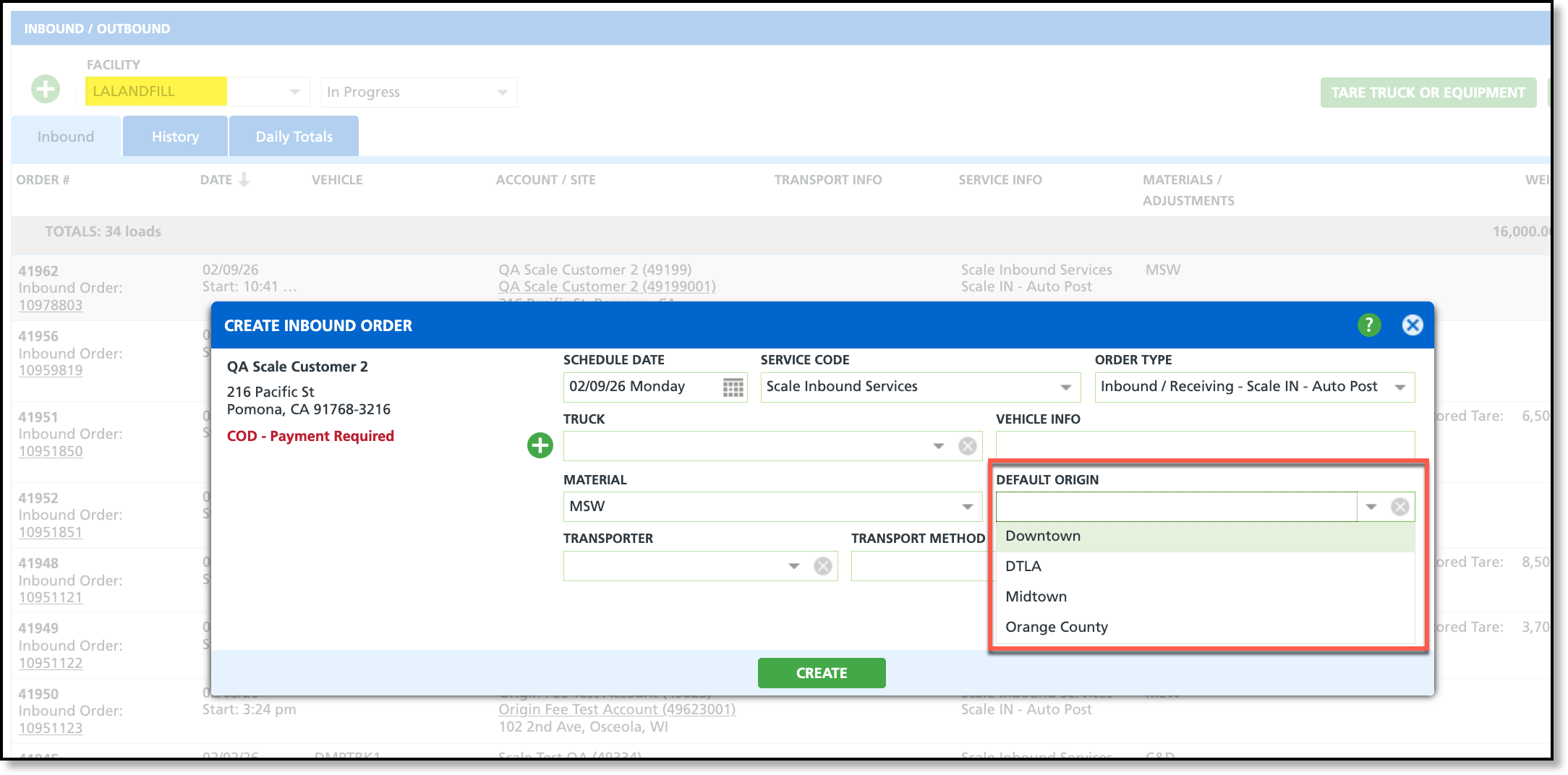
Image Example: Create Inbound Order - Default Origin field
When an origin is assigned at the site level, it will auto-populate the Default Origin field for inbound orders created for the site.
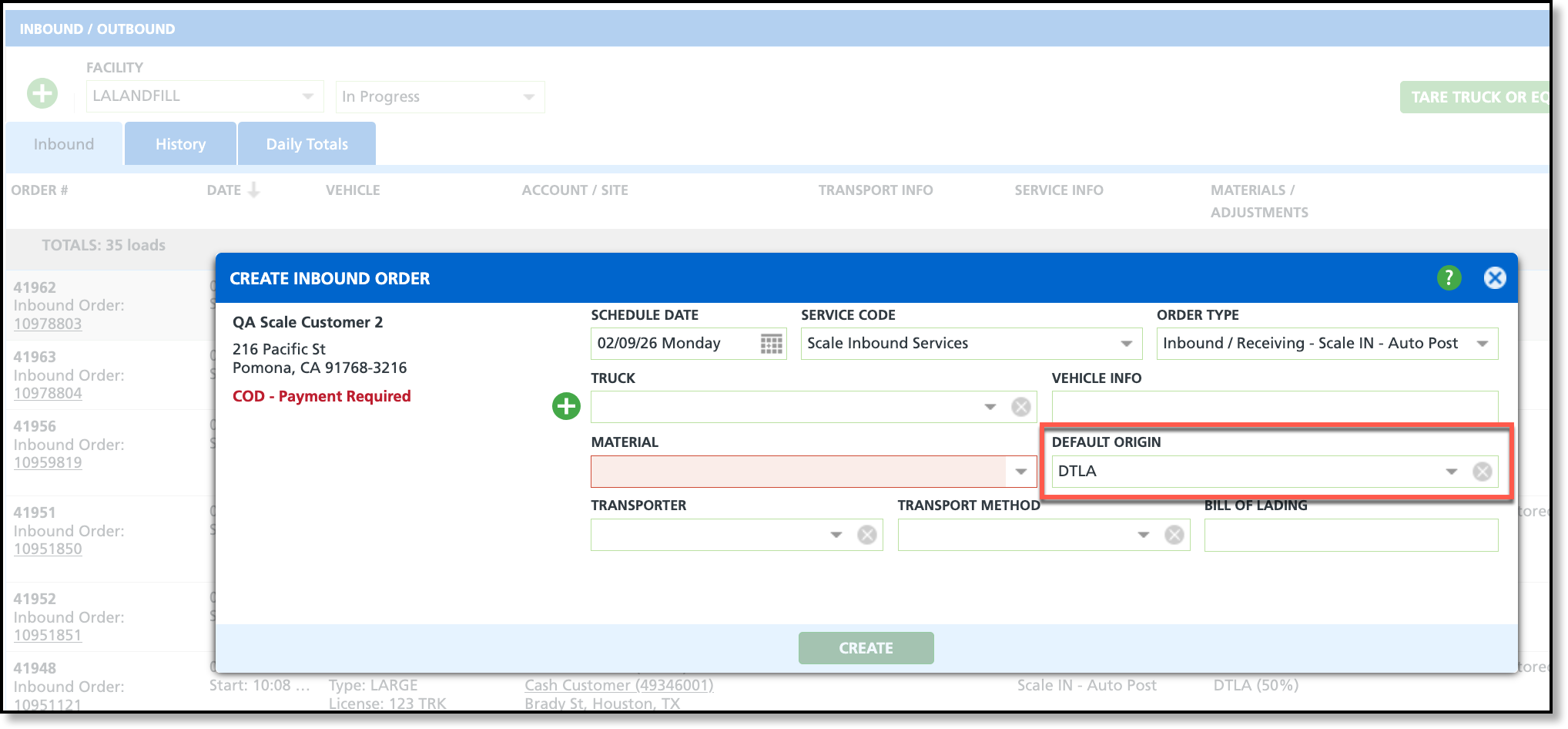
Image Example: Edit Inbound Order - Origins Percentage
When an origin is assigned at the site level, it will set the origin's Percentage to 100% on the Origins tab for the inbound order.
Assign to Inbound Work Order
Pathway: Operations > Inbound / Outbound
On the Inbound / Outbound screen, the Origin field is displayed in two places: first on the Create Inbound Order screen, where a default origin is selected for the ticket, and again on the Edit Inbound / Receiving screen, where percentages can be specified if the disposal includes material from more than one origin.
Create Inbound Order
On the Create Inbound Order screen, the Default Origin field is displayed when setup requirements are met; otherwise, the field is hidden. If the site associated with the ticket already has a default origin set in Site Details, the origin is automatically populated.
Setup Requirements:
To display the Default Origin drop-down field on the Create Inbound Order screen, the Track Inbound Source / Origin setting for the Work Type (Setup > Operations > Work Type) must be set to either Require Material Origin or Optional Material Origin.
To display an origin in the selection drop-down, the following logic is used:
An origin will display only when its assigned division matches the division of the facility. If no division is assigned to the origin (the Division field is blank), the origin will display for all facilities.
Edit Inbound Order
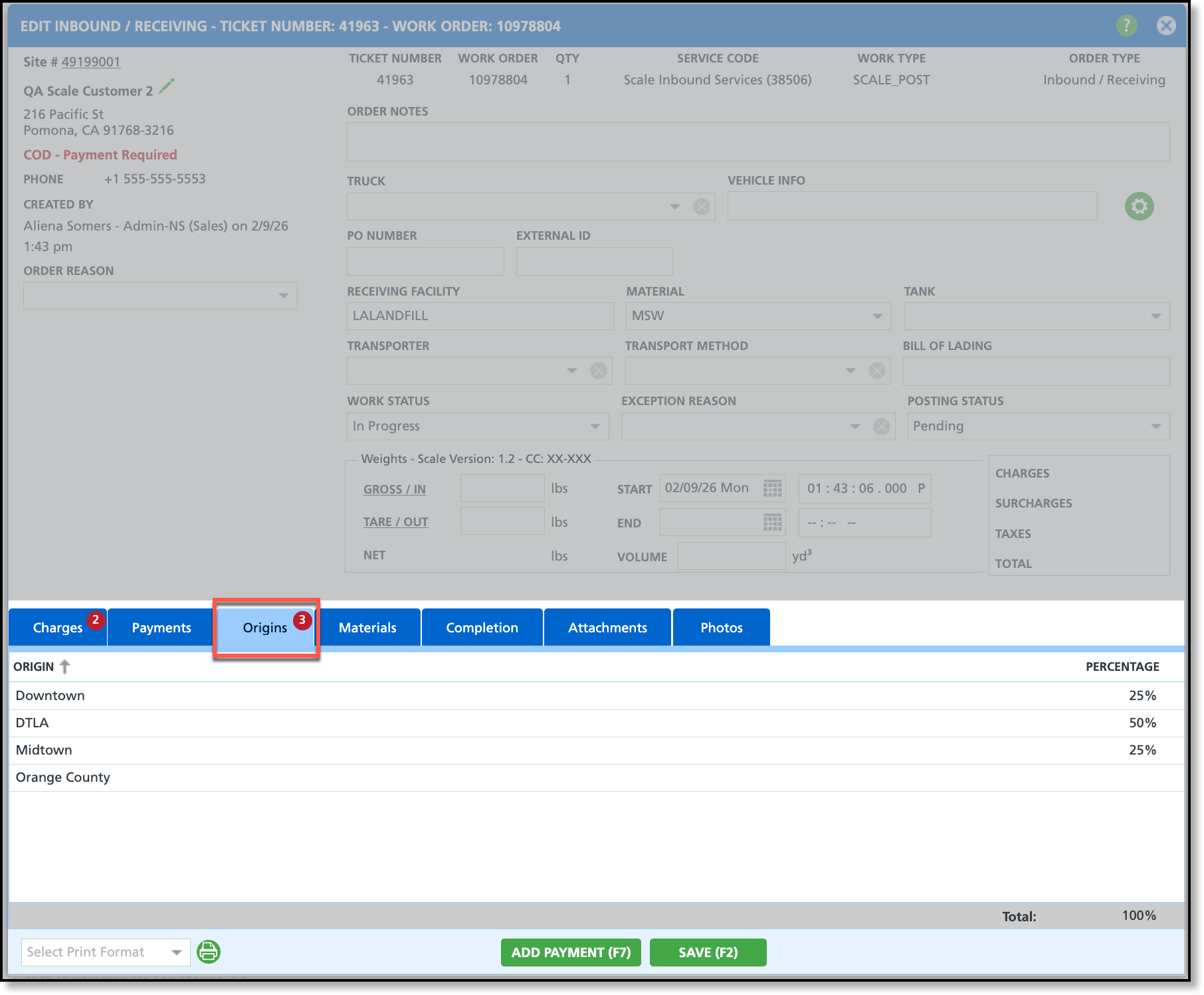
On the Edit Inbound / Receiving screen, the Origins tab is displayed when setup requirements are met; otherwise, the tab is hidden. If a default origin was previously selected from the Create Inbound Order screen, or an origin is assigned at the site level, it will automatically be set to 100%.
Setup Requirements:
To display the Origin tab on the Edit Inbound / Receiving screen, the Track Inbound Source / Origin setting for the Work Type (Setup > Operations > Work Type) must be set to either Require Material Origin or Optional Material Origin. NOTE: If Require Material Origin is selected, an origin percentage must be designated for the order's Work Status to be marked Completed.
To display an origin in the tab, the following logic is used:
An origin will display only when its assigned division matches the division of the receiving facility. If no division is assigned to the origin (the Division field is blank), the origin will display for all facilities.
Permissions
The following permissions are required to access, create and manage material origins:
| Permission ID | Permission Name |
| 24 | Setup \ Operations |
Related Articles
Facility Setup

