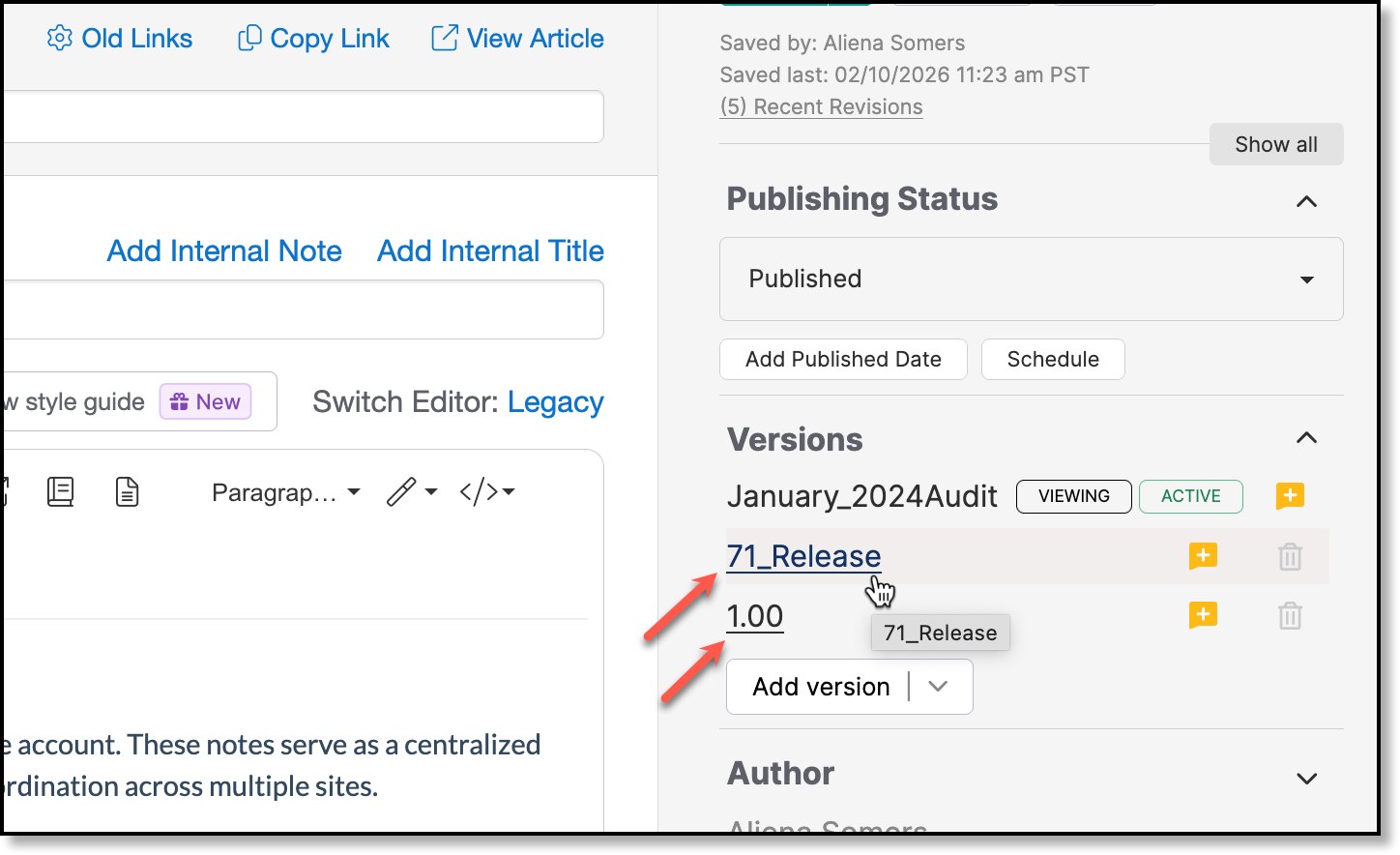
Versioning Articles
To hide articles actively being worked on from customer view, versioning should be used.
Version Naming Conventions
To version an article, select the Add Version (1) drop down located on the right side of the screen and select Custom (2). Then enter the name of the version in the Enter Custom Version field (3).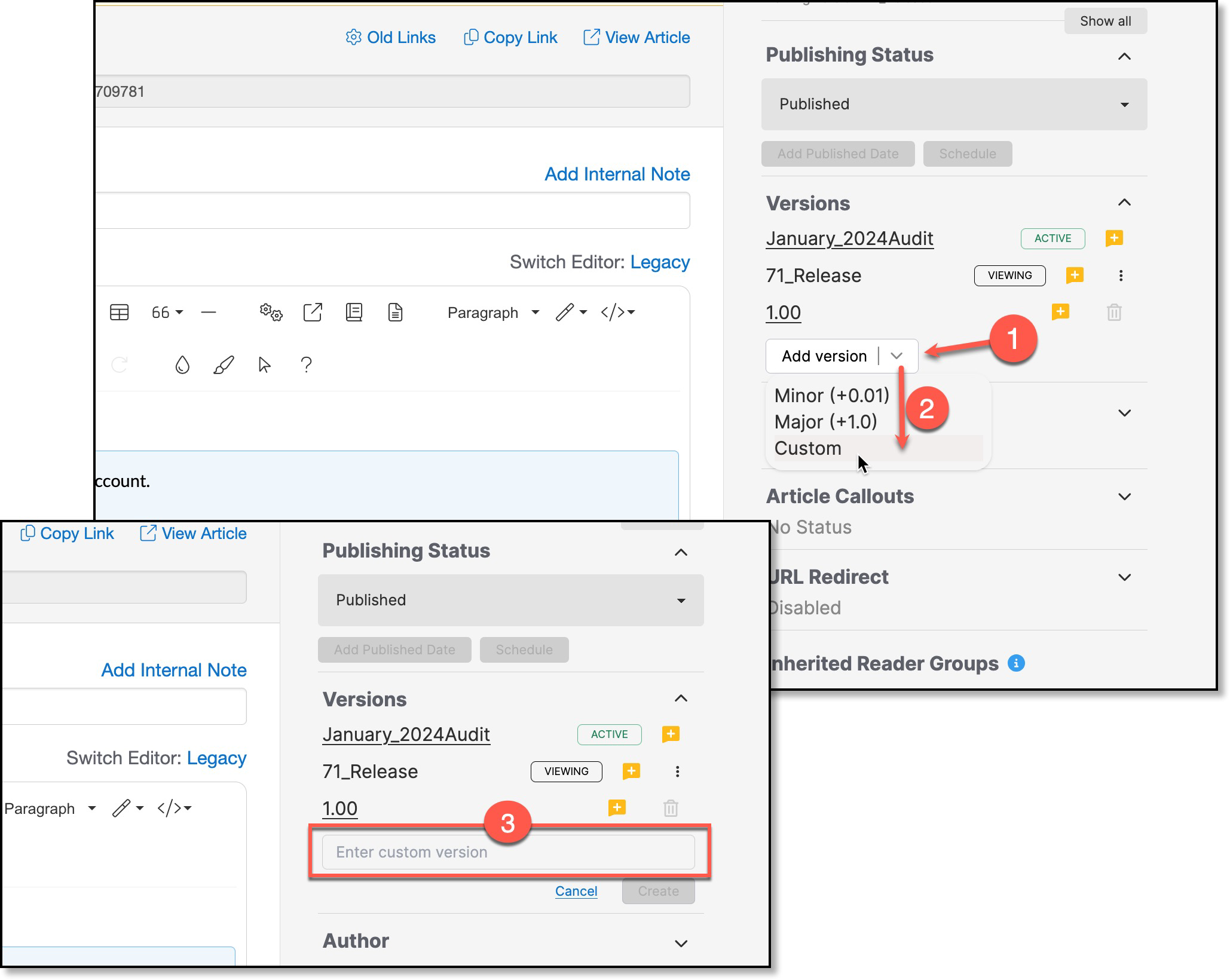
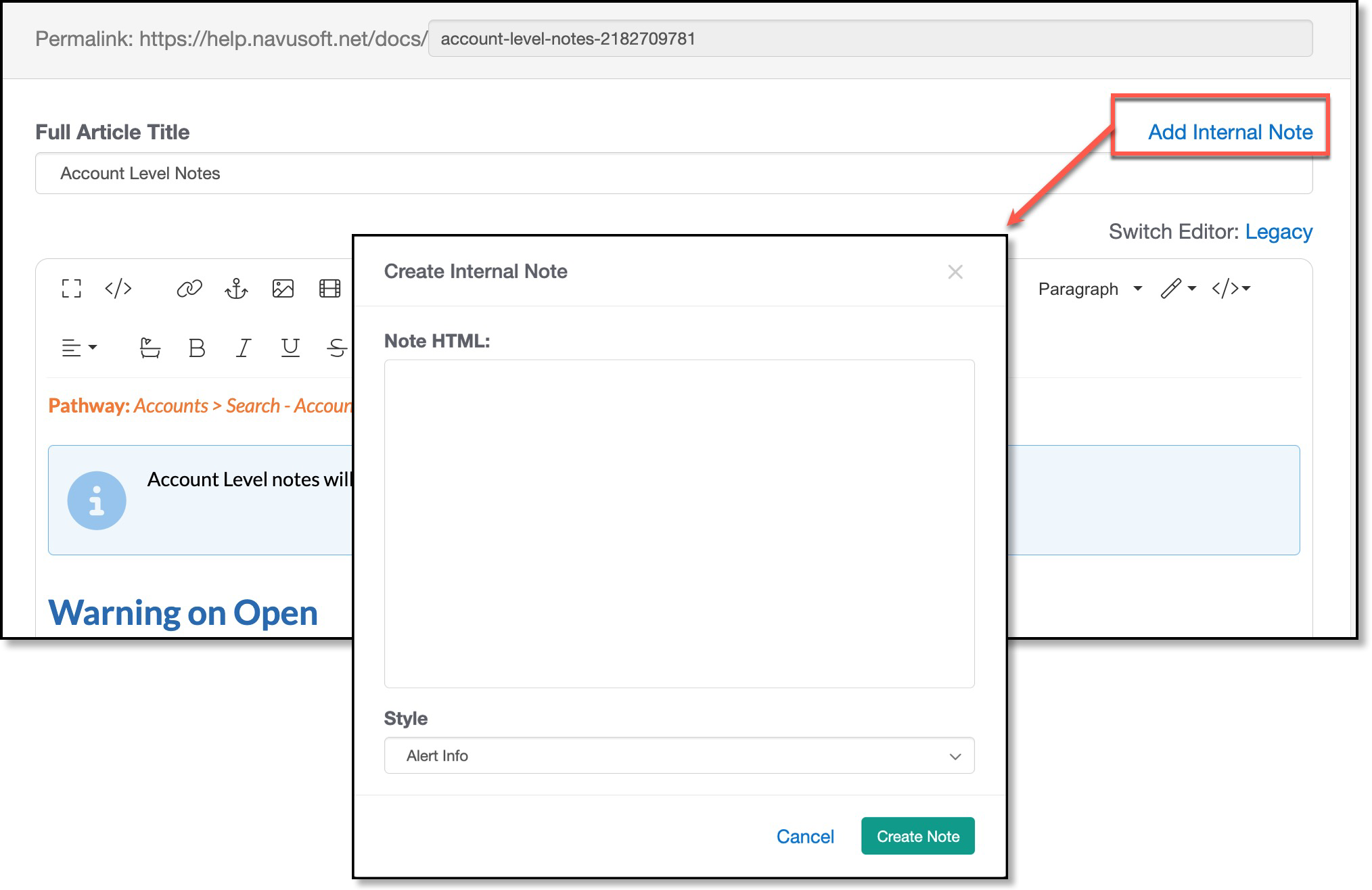
Add an Internal Note
Internal notes are a way to note what you were working on and/or reference JIRA tickets related to the changes being made. Notes entered here are not visible to customers and will carry across versions. For clarity and quick reference later as you are working the article, consider including the applicable release version within the note.
Delete the note when it is no longer needed.
Active vs. Inactive Version
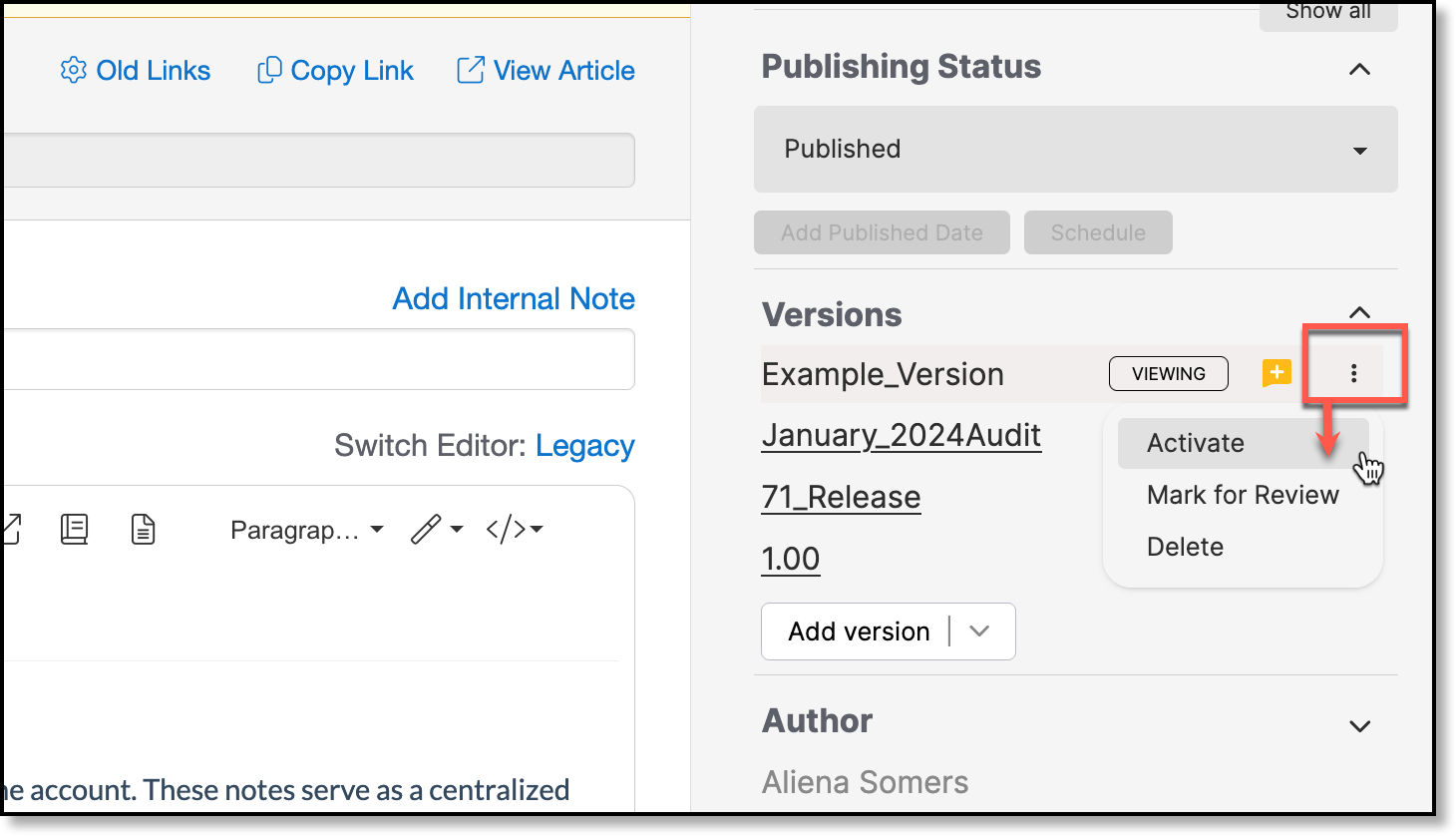
Only one version can be active at a time. The active version is marked with an Active label, while the version you are currently working in is marked with a Viewing label. Never make changes within an active version.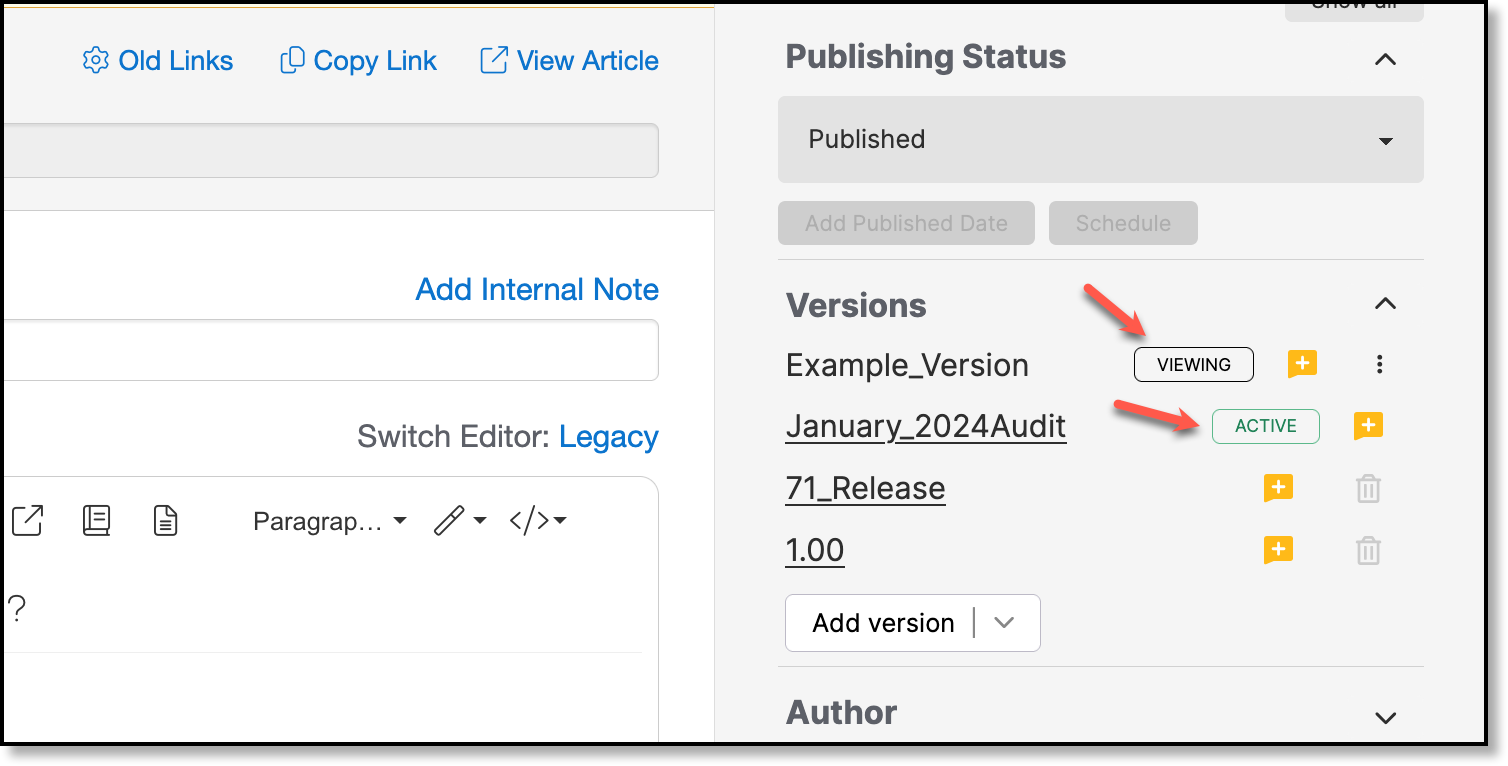
Activate and View Versions
Activate a Version
When a version is ready to be released for public view, activating it is easy. Simply click on the Version Actions icon and then select Activate.
Navigate Between Versions
Note: When viewing a version that is not active, the Version Actions icon is displayed allowing you to reactivate an old version. This may be helpful in scenarios where a new version was made active too soon.